Pinwheel Dashboard Instructions
Installation
The program is very easy to install and only requires some registry settings.
- Create a folder to store the program in any drive on any Windows computer that can access the Pinwheel DME database. The folder does not need to be in the program files folder.
- Create a Windows group and only allow that group to access to the folder. The Windows group must have read, write and execute permissions on the folder.
- Place the appropriate Windows users into the Windows group.
- Add the four Dashboard programs to the folder:
- Pinwheel Dashboard.exe
- Pinwheel Basic Registry Setup Program.exe
- PinwheelAcc.dll
- DevComponents.DotNetBar2.dll
- Run the Pinwheel Basic Registry Setup Program.exe program and provide the following information for the registry:
- The location of the Pinwheel DME database.
- The Pinwheel DME client name.
- The email settings being used by the Pinwheel DME Client program.
- NEVER RUN THE PINWHEEL BASIC REGISTRY SETUP PROGRAM ON THE SERVER.
- Run the Pinwheel Dashboard.exe program.
Uses for the Dashboard
The Pinwheel Dashboard is used to…
- View Pinwheel data for managed cardholders. Managed cardholders are those cardholders being added and manipulated by the authoritative data sources (e.g. ERP, Housing Management and Badging systems) connecting to the Pinwheel DME. These cardholders are view only and cannot be modified from the Pinwheel Dashboard.
- Update unmanaged cardholders. Unmanaged cardholders are those cardholders added directly to the Pinwheel DME database and do not have any other authoritative source. Examples are conference, contractor or vendor cards. Updates can be made to these cards and those changes will be reflected in the Pinwheel DME database. Any necessary data changes will be passed to the Vendor Plug-Ins.
- Add a range of new numbers to the Pinwheel DME database for unmanaged cardholders. Numbers must exist in the Pinwheel DME database before you can update them. Both the client and SwiftData must approve the number range, and they can never interfere with the numbers coming from any of the authoritative sources. Numbers are either added without names so they can be used in the Add New Cardholder form or are added for specific purposes such as for conferences, contractors or vendors.
- Find a cardholder by their last name. Since the Pinwheel database is encrypted it is necessary to provide the entire name and it is case sensitive.
- Administer a range of unmanaged cardholders that can be updated in bulk. The user can manage a conference—or number of contractor cards—at one time.
Operating the Pinwheel Dashboard
When you run the Pinwheel Dashboard program you will first see the main dashboard screen. You can open as many forms as you like. Each form will create a new window within the main program. When you close a window the program checks for any changes made and then updates Pinwheel DME with your changes.
Forms
The dashboard provides the following choices under the Forms menu:
- View Cardholder
- Add New Cardholder
- Manage Groups of Cardholders
View Cardholder and Add New Cardholder Form
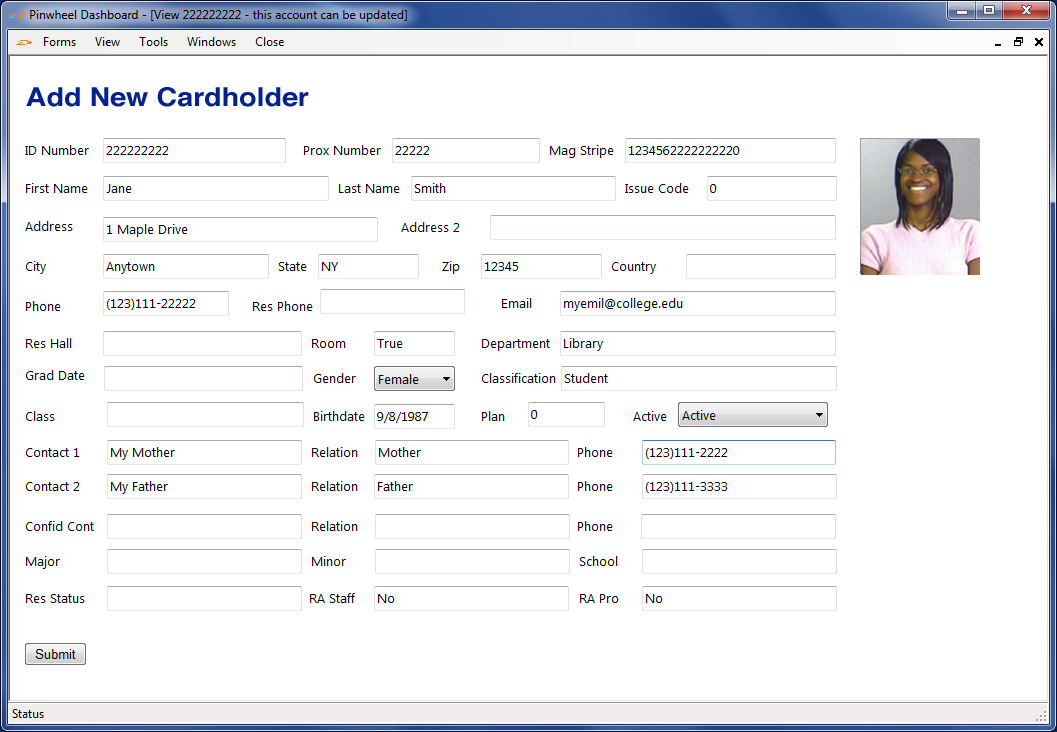
View Cardholder will first ask for the cardholder number and then displays the view form for that cardholder, whereas the Add New Cardholder will find the next unmanaged ID number without a first and last name. When the form is closed, Pinwheel will test the unmanaged cardholder for changes and update the Pinwheel DME database.
The fields displayed on this form—and managed and unmanaged ID numbers used—are determined by the custom configuration of your Pinwheel Client Program.
If you update or make changes to an unmanaged cardholder the Dashboard will act as a Client Program and send the appropriate changes to any of the associated 3rd-party systems via their specific Plug-In.
A generic version of the form is displayed below.
Manage Groups of Cardholders
This form is used to update a specific range of unmanaged card numbers.
NOTE: Any managed cardholders within this range will not be updated.
This form is normally used for groups of unmanaged cards with a specific purpose like conference, contractor or vendor cards.
Like the View Cardholder form, the fields displayed on the Manage Groups of Cardholders form are determined by the custom configuration of your Pinwheel Client Program.
A generic version of the Manage Groups of Cardholders form is shown below.
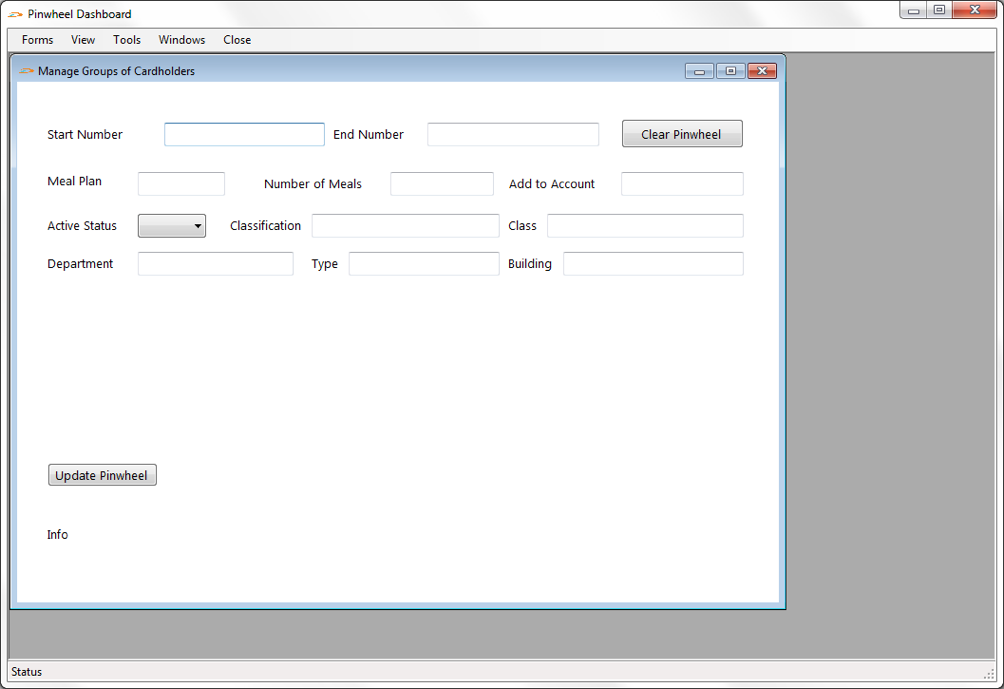
Since these ID numbers are reusable, before updating a group of cardholders you must first clear all ID numbers within the range you want to update. To do so, type in the Start and End Number range and press the Clear Pinwheel button. This will clear all information from each unmanaged cardholder and the changes will be sent to the appropriate Vendor Plug-In.
You are unable to proceed with updating your new group until the reset changes flow through to all of the associated Vendor Plug-Ins. Because the timing of the updates is different for each client there will be a time lapse between when you clear the numbers and when the Plug-Ins receive the values.
You must wait until the Vendor Plug-Ins clear all of the information before continuing.
When finished inserting changes, press the Update Pinwheel button. All unmanaged cardholders will be updated in the Pinwheel DME database and passed to all appropriate 3rd-party systems via their specific Plug-In.
Tools
Under the Tools menu are two options, Add Cardholder Numbers and Find Cardholder by Last Name.
Add Cardholder Numbers
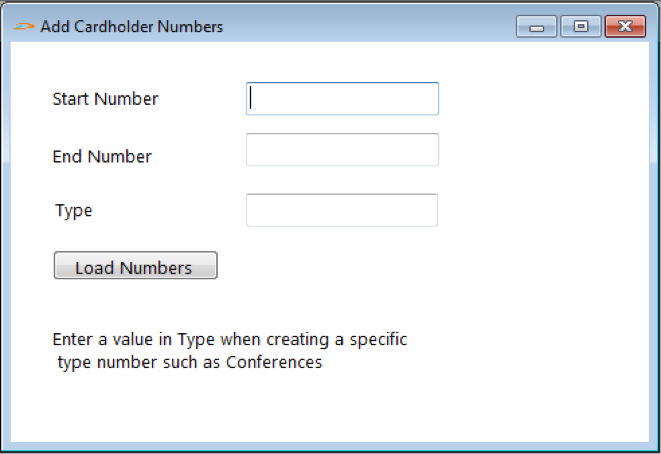
Use this tool to add new unmanaged cardholders. Enter a Starting Number and Ending Number and a Type (Conference, Contractor, Vendor, etc; if left blank no type will be associated). All records are added as Inactive. You must activate the records prior to use with either the Add a New Cardholder form or the Manage Groups of Cardholders form.
There are two purposes for adding new cardholder numbers:
- To create ID numbers for new, unmanaged cardholders.
These numbers are added without any name information. The tool will create a clean record with only the ID number. The Type box must be left blank.
- To create ID numbers used for a specific purpose that can be reused over and over, like conference or contractor cards.
The dashboard user will enter a type in the Type box. The type entered, i.e. “Conference” will display as the cardholder’s first name view form and the last name will be “Card” followed by the ID number.
This allows for the cards to be printed with a purpose in mind. Also, most access control companies will not allow new cardholders to be added or managed without a first and last name.
To use, enter a starting number and ending number with a type if desired and press the Load Number button.
Find Cardholder by Last Name
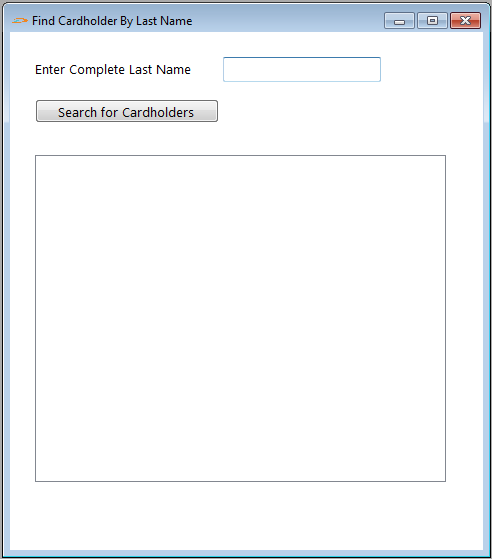
Use this tool to find a cardholder by their last name. Enter the complete last name (case sensitive) in the box. Press the Search for Cardholders button.
Double Click any name to display cardholder in the View Cardholder Form.
If you need assistance setting up or using the Pinwheel Dashboard please contact SwiftData support at help@swiftdata.works.